
View sort by Margin
View sort by Compliance
Insurance/ Worker’s Comp
Non-Compliant Penalty Fee
SP On line Access
There are two views available in the Service Provider module, one by Margin the other by Compliance.
By Margin
Gain easy access to view each individual SP’s gross split payment, your margin and the margin percentage. These figures are for RS customer SC’s only and include no fees or deductions of any kind.

By Compliance
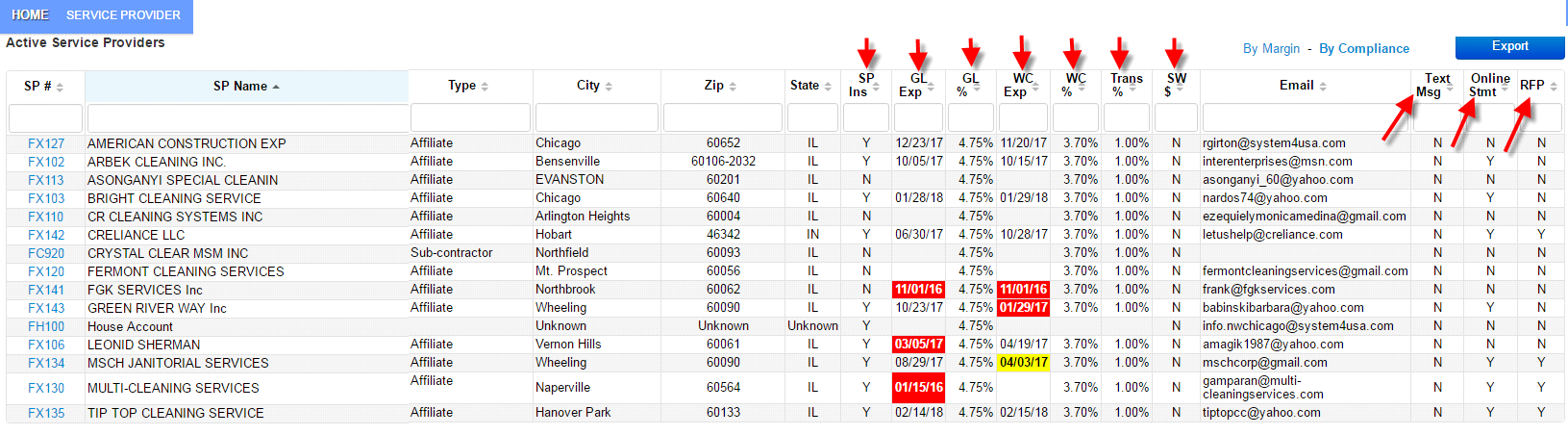
It is important that you maintain the accuracy of your SP records especially regarding insurance & worker’s comp compliance.
Insurance/ Worker’s Comp
Your service providers are responsible for providing their own insurance and worker’s comp (w/c is not required in all states). You must maintain proof of that insurance by keeping a copy of the current COI naming System4 as an Additionally Insured Party on file at all times.
Below is a screen shot of how every SP’s compliance screen should look – Copy of the COI attached, in Active Status, accurate current insurance dates, compliance checked and Tax ID.
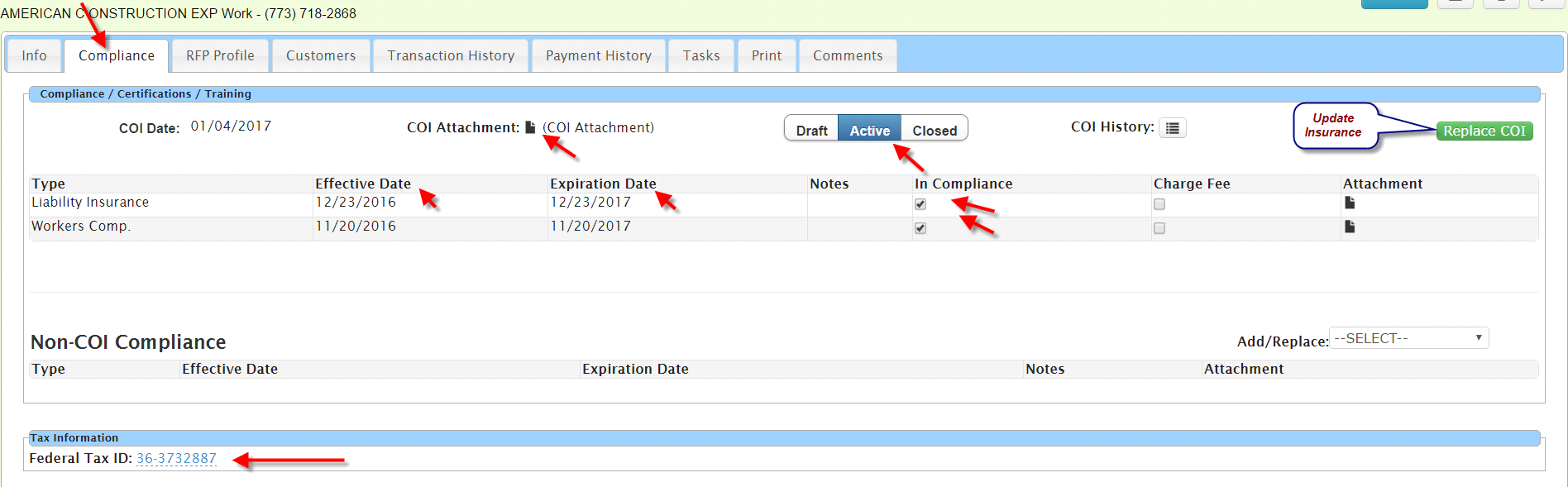
To update insurance information, click Replace COI and complete the screen. We strongly recommend you attach a copy of the COI to this file. We suggest you also keep a hard copy in the SP’s folder.
Be sure once you’ve completed the information, you click ‘Active’ to move it from Draft and post the new information.
The updated insurance information is now posted on the Service Provider by Compliance report. Note: Any dates in Red indicate expired insurance, any dates in Yellow indicate the expiration date is approaching.
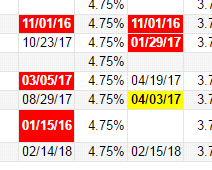
Email any SP regarding expiring insurance at least 30 days in advance. If you do not have a renewed policy in hand by the time you are processing statements for the month, access the compliance screen and click ‘Charge Fee’.
If you have an ex-franchisee who converted to an Affiliate but has no insurance, please contact corporate to discuss.
The GL % and the WC% are set as defaults in Smarts.
SP Access
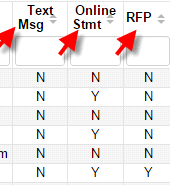
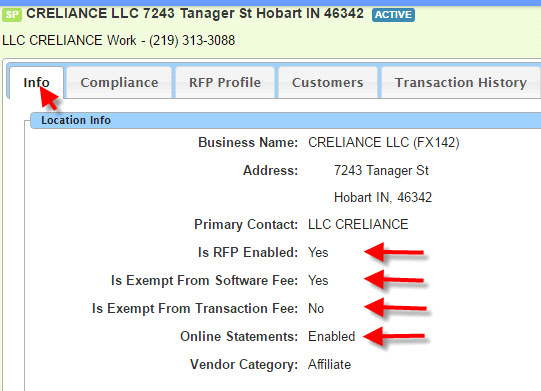
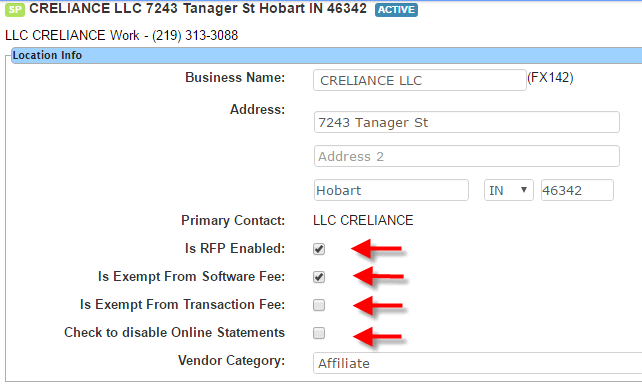
The SP Compliance screen will also allow you to confirm which of your SP’s can view their account on-line including approving or disputing their monthly statment and/or participate in the RFP offerings.
To change the setting, access the info tab on the SP file
Click on Edit in the top right hand corner
Complete your changes and click Save


If you have given a SP on-line access to their account, from the menu bar they can:
•Access the RFP details, past and present, for which they have been included
•Maintain accurate contact information
•View our current Compliance data
•View all past statements processed in Smarts2
•Once opened to SP’s during statement mode, view current statement with the ability to approve and/or dispute items
•